Reduce Scratches on a Black-and-White Portrait
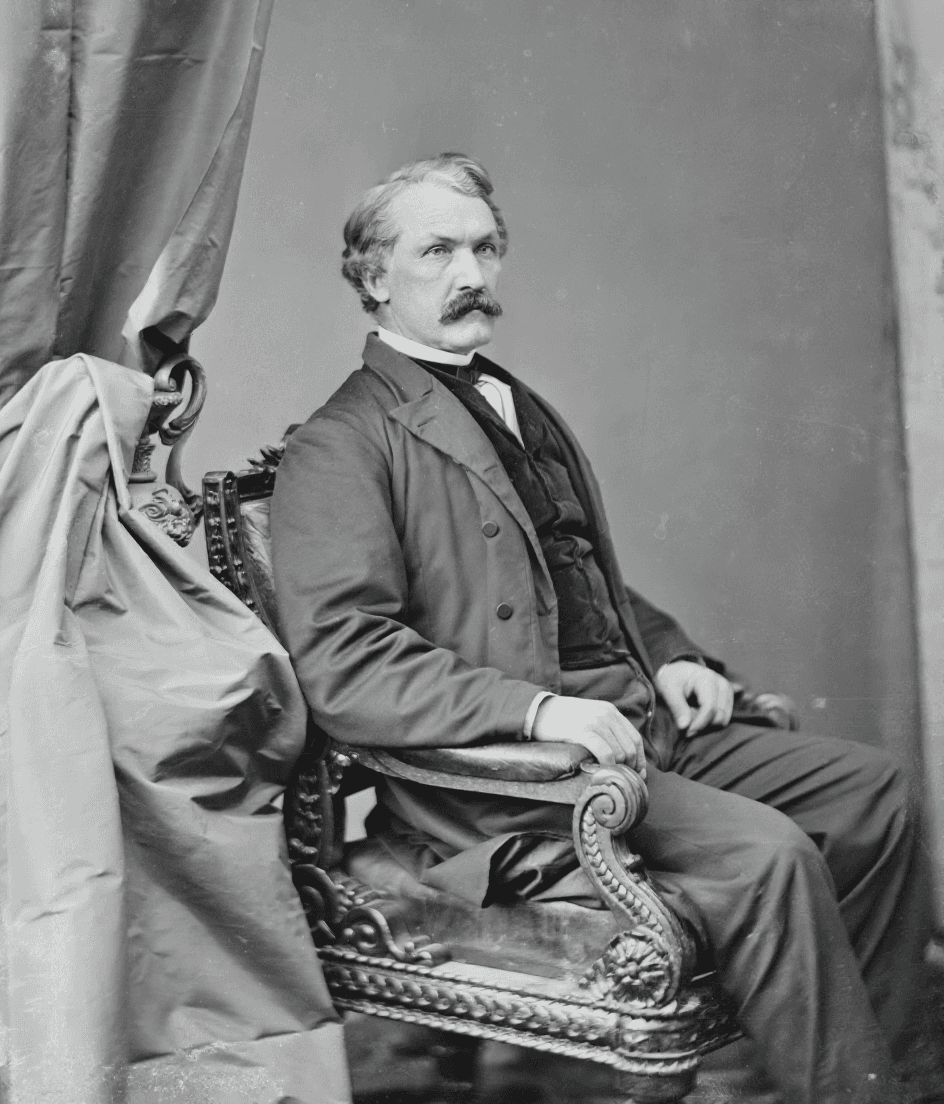
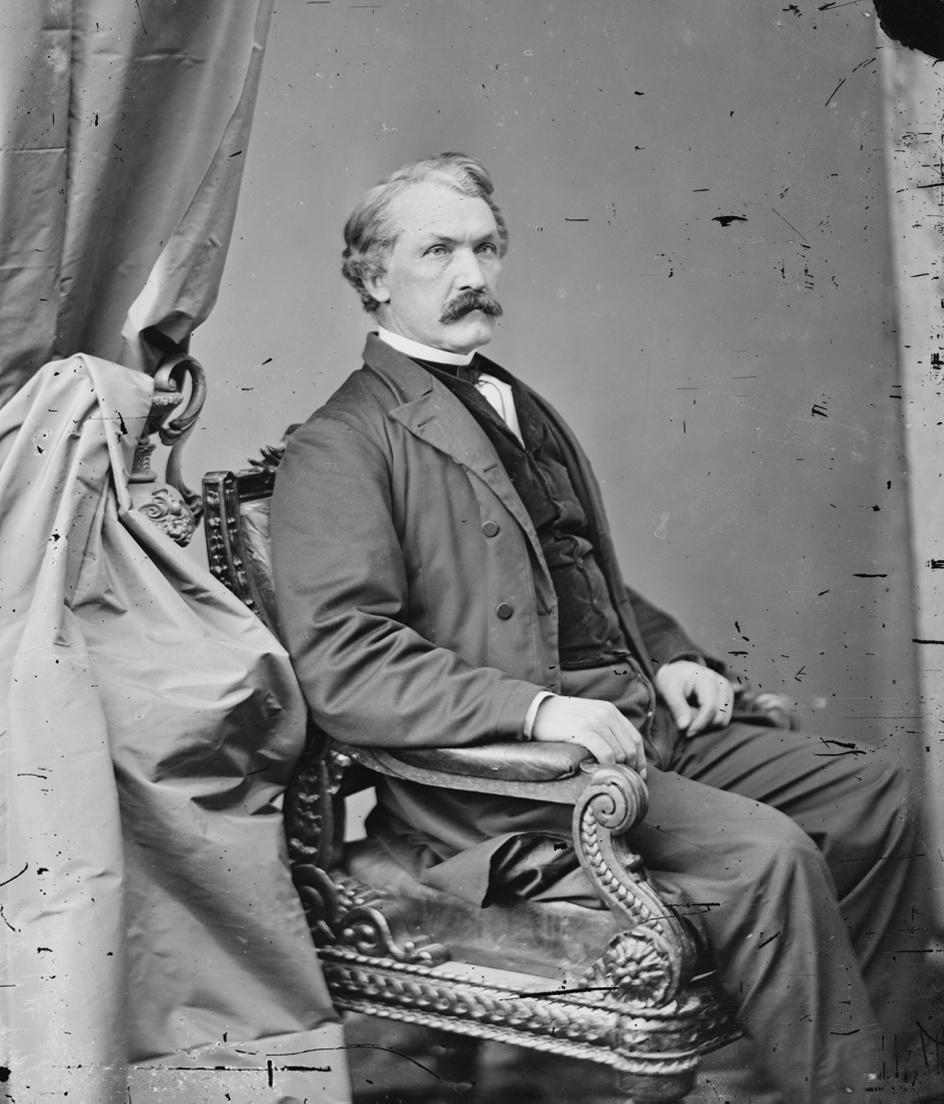
In one recorded FLUX Kontext Pro run, visible scratches were reduced and the output remained black and white. Inspect the face and fine details against the original.
Try AI photo restoration for light to moderate scratches, dust, fading, and softness when important details are still visible. Review the before-and-after result carefully: generative edits can change faces or other details, and severe damage may not be restored faithfully.
Reduce Scratches on a Black-and-White Portrait
These recorded examples cover a scratched portrait and a deliberately blurred portrait. They do not establish reliable results for severe damage or missing details.
In one recorded FLUX Kontext Pro run, visible scratches were reduced and the output remained black and white. Inspect the face and fine details against the original.
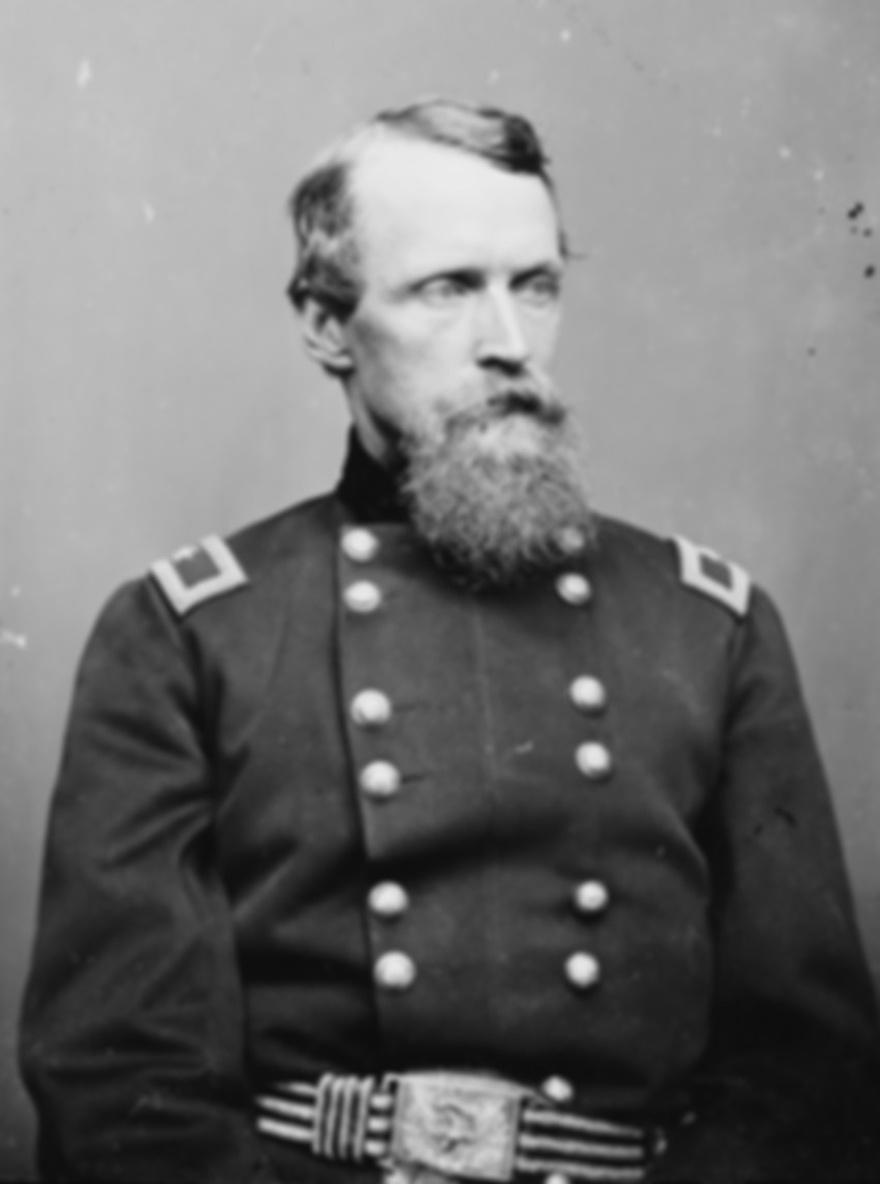
This before image is a controlled blur, not a naturally damaged print. One recorded run retained the broad face and beard outline; finer texture cannot be verified from the blurred source.
We support JPG/JPEG, PNG, and WebP files. The maximum file size for individual upscaler uploads is 5MB.
Uploaded images and results are automatically deleted from our servers after 72 hours. We never share your photos or use them to train AI models.
You can use results for business, ecommerce, client, and social media work as long as you hold the rights to the original image.
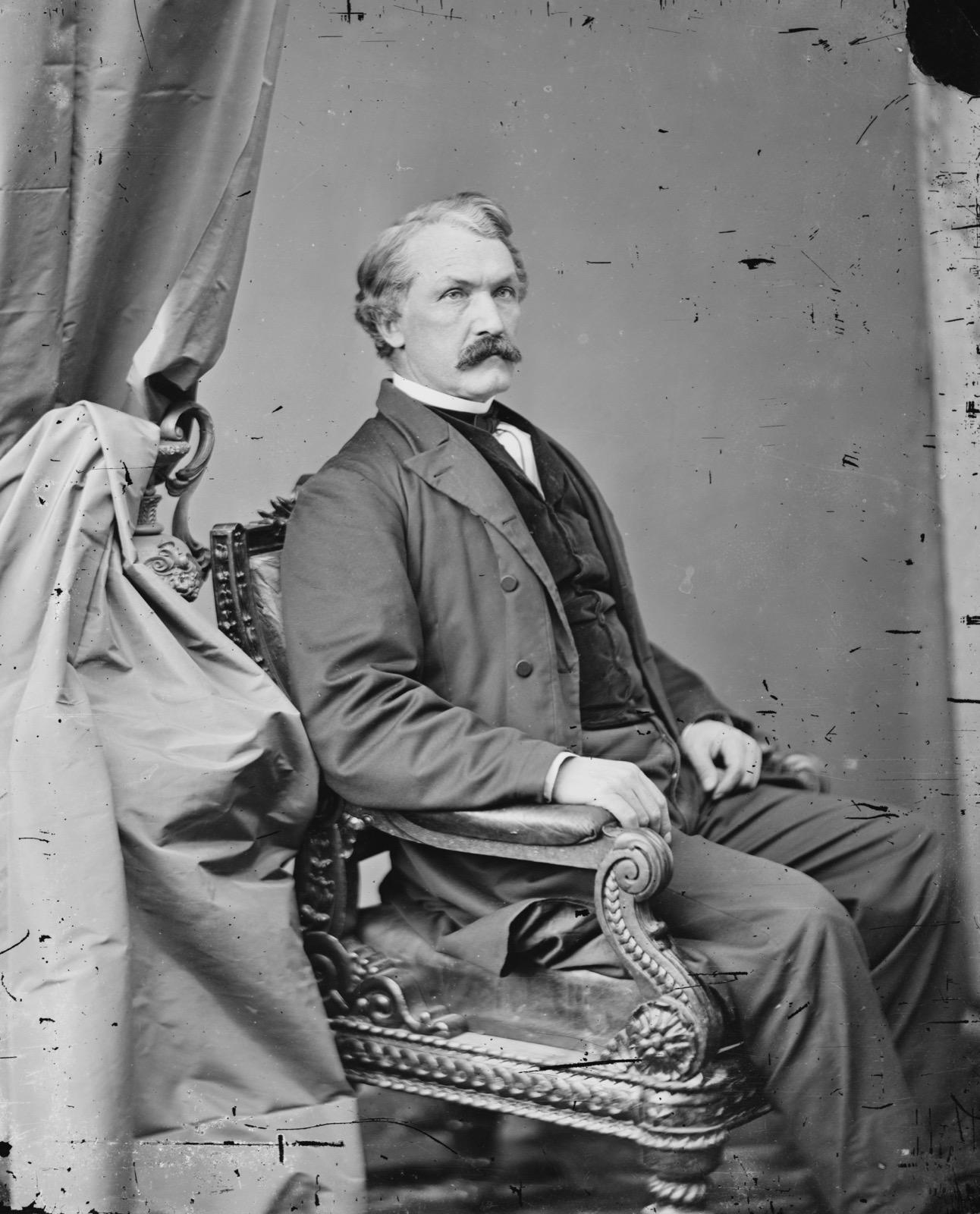
The tested scratched portrait showed fewer visible surface marks. Results vary by image, and the model may also change facial hair or other small features. Compare the output before downloading.
Light or moderate fading and softness can be tested when the source still contains useful detail. A faded-photo test changed the subject's identity, so faithful restoration is not guaranteed. Severe blur or missing information is especially uncertain.
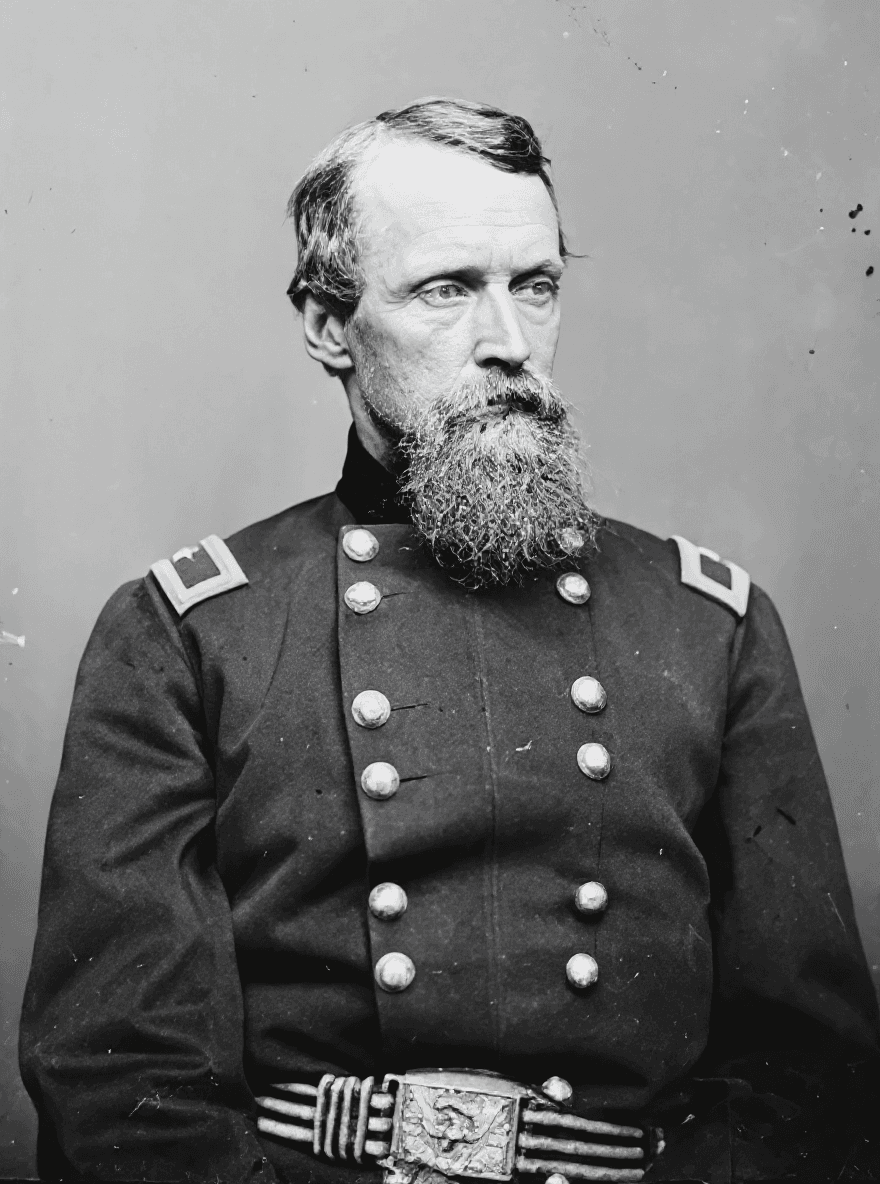
The tested scratch and blur outputs remained monochrome, but a prompt cannot guarantee that every result will preserve tone or identity. Inspect faces, hair, accessories, and color before using an image.
Sign in, then upload a JPG, PNG, or WebP image up to 5 MB. Use the clearest scan or photo you have.
The tool sends the image through a fixed restoration instruction. It asks the model to preserve identity and monochrome appearance, but generated details can still differ from the source.
Check faces and fine detail with the before-and-after control. Download only if the result suits your use. This tool edits photos; it does not promise a 2x upscale.
Choose the next tool for your image goal: free 2x testing, 4K output, 8x upscaling, product photos, or print-ready 300 DPI.
Start free to try PicUpscaler on your own images. Upgrade to Pro when you need 4x upscaling and no daily limit, or choose Premium for 8x output and higher monthly volume.
$0/month
3 free 2x upscales/day
For occasional 2x upscaling and trying PicUpscaler.
Secure checkout by Stripe
It is intended for light to moderate scratches, dust, fading, and softness when useful image details remain. Severe tears, missing areas, heavy blur, or major damage can lead to inaccurate generated details.
The restoration instruction asks the model to preserve identity and facial features, but this is a generative edit and cannot guarantee an exact match. Compare the result with the original, especially around faces, hair, and accessories.
The instruction asks the model to keep black-and-white photos monochrome. The two displayed test outputs remained black and white, but individual results can vary, so check the output before downloading.
It may produce a result, but severe damage and missing details are unreliable. The model can invent or change facial features when the source does not contain enough information.
No. This page edits a photo for restoration and does not promise a particular enlargement factor or output size. For enlargement, use the AI image upscaler.
Yes, sign-in is required. Free restorations use the shared daily allowance for image upscaling. Each successful restoration on a paid plan uses one 2x monthly allowance; failed restorations are not charged.