Not every photo needs to be larger - some just need to look better. PicUpscaler can improve common photo quality issues such as mild blur, digital noise, compression damage, and dull color while producing a larger 2x, 4x, or 8x result. It works best when your source image still contains visible detail.
See sample results
BeforeAfter
Upload Your ImageDrag and drop or click to browse. JPG, PNG, and WebP supported.
Multiple Format Support
We support JPG/JPEG, PNG, and WebP files. The maximum file size for individual upscaler uploads is 5MB.
Privacy & Security
Uploaded images and results are automatically deleted from our servers after 72 hours. We never share your photos or use them to train AI models.
Commercial Use
You can use results for business, ecommerce, client, and social media work as long as you hold the rights to the original image.
What the AI Image Enhancer Actually Fixes
BeforeAfter
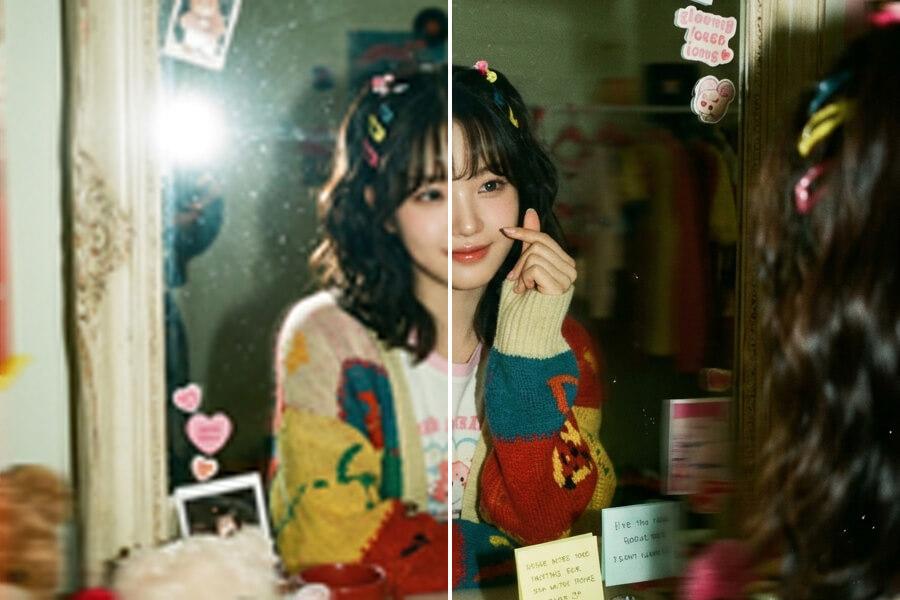
Blur Correction — Camera Shake and Soft Focus
Blur is one of the most common reasons a useful photo becomes hard to use. PicUpscaler can improve mild camera shake, soft focus, and compression blur when the subject is still recognizable. It cannot guarantee recovery from severe motion blur, extreme out-of-focus shots, or text that is unreadable in the source.
BeforeAfter
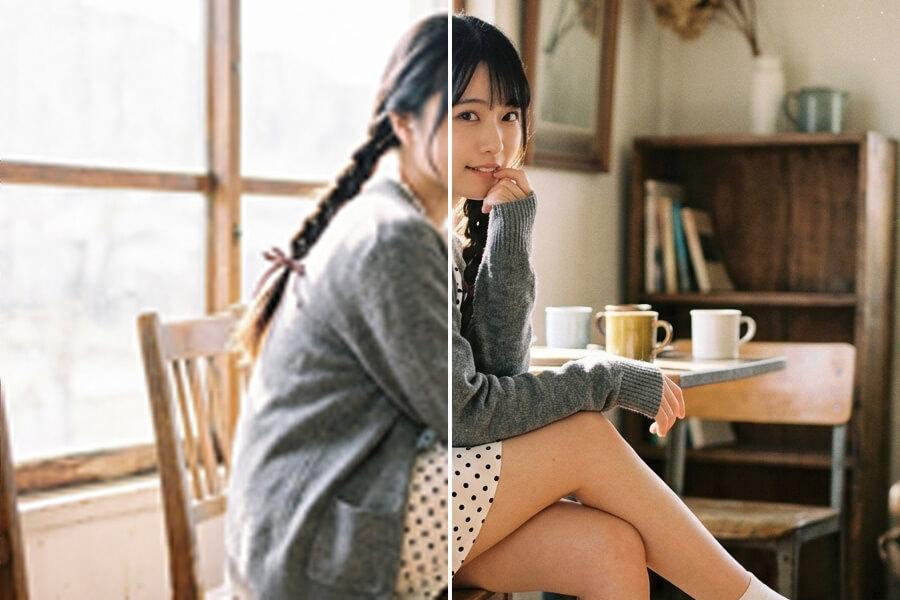
Noise Removal — Low Light and High ISO Photos
Digital noise is the grainy, speckled look in low-light smartphone shots, indoor portraits, and night photos. PicUpscaler can reduce visible noise while preserving useful detail when the original file has enough information. Very noisy or heavily compressed images may still show artifacts after enhancement.
BeforeAfter
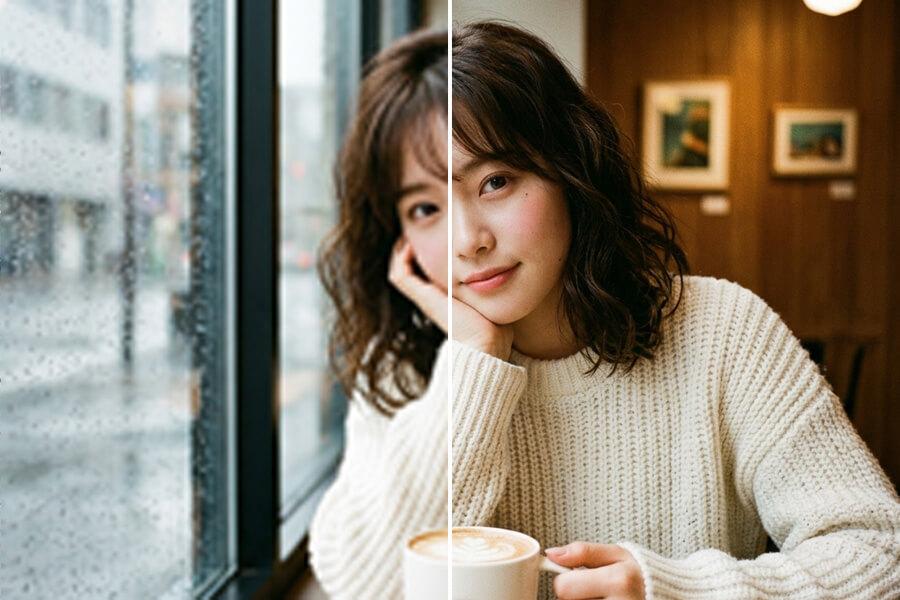
Compression Artifact Recovery — Social Media and Old JPEGs
Every time a photo gets shared, downloaded, or resaved as JPEG, it can lose quality. Blocky artifacts appear in smooth areas, colors look patchy, and fine details become harder to see. PicUpscaler can improve many compressed images, but the result still depends on how much usable detail remains in the source file.
How to Enhance an Image — 3 Steps
Step 1
Upload Your Photo
Drag in a JPG, PNG, or WebP file up to 5MB. Free users can start with the core workflow; higher scale options are available on paid plans.
Step 2
Let AI Enhance Visible Detail
PicUpscaler improves visible quality while producing a 2x, 4x, or 8x output depending on your selected scale and plan. Start with the clearest source file available for the best result.
Step 3
Download the Fixed Photo
Compare before and after using the side-by-side viewer. Processing time depends on file size, selected scale, image complexity, and current system load. Download the finished result without a watermark.
Start free to try PicUpscaler on your own images. Upgrade to Pro when you need 4x upscaling and no daily limit, or choose Premium for 8x output and higher monthly volume.
Free plan
$0/month
3 free 2x upscales/day
For occasional 2x upscaling and trying PicUpscaler.
What's the difference between enhancing and upscaling?
Upscaling makes an image larger, while enhancement improves visible quality by fixing blur, noise, compression damage, or dull colors. The current tool combines enhancement with 2x, 4x, or 8x output. Start with the lowest scale that fits your output, then use higher scale options when you need larger results.
Can it fix a really blurry photo?
It depends on the type and severity of blur. Moderate blur from slight camera shake, soft autofocus, or heavy compression may improve. Severe out-of-focus blur or extreme motion blur, where the subject is mostly unrecognizable, is much harder to fix because no tool can fully reconstruct detail that was never captured. Try it on your photo and use the before/after preview to judge.
Does it work on phone photos taken indoors?
Yes. Indoor phone photos often combine digital noise, compression, and flat color. PicUpscaler can improve many of these images in one workflow, but the final quality still depends on exposure, focus, and source compression.
What about photos shared on WhatsApp or downloaded from Instagram?
Social media platforms heavily compress images when they are uploaded, and additional compression can happen on download. PicUpscaler can reduce some blocky artifacts, muted color, and softness. It will not make a social media download look like the original RAW file, and very degraded files may still have visible artifacts.
Will it over-process my photo and make it look fake?
Over-sharpening can create halos, aggressive noise reduction can make skin look plastic, and overcorrected colors can look unnatural. PicUpscaler aims for a practical improvement rather than a heavily edited look, but source quality still matters. The before/after preview lets you judge for yourself before downloading.
Can I enhance without making the image bigger?
Not as a separate production option yet. The current workflow enhances while producing a 2x, 4x, or 8x output. Use 2x for daily free processing, upgrade to Pro for 4x, or choose Premium for 8x when you need larger results.
What file formats work?
JPG, JPEG, PNG, and WebP. PNG transparency is preserved through the enhancement process, which matters if you're working with logos, product cutouts, or layered design assets.
How long does it take?
Most images finish quickly, but timing depends on file size, selected scale, image complexity, and current system load.
Is it free?
You can start free and download output without watermarks. Paid plans are available for higher scale options and more regular processing.
Is my photo kept private?
Yes. Images are encrypted during upload and automatically deleted from our servers after 72 hours. We don't use uploaded photos for AI training, and we don't share them with third parties. Your photos stay yours.