
Photo Enhancer Online for Clearer, Better-Looking Photos
When a photo looks soft, dark, noisy, faded, or over-compressed, you usually want one thing: a cleaner version you can actually use. PicUpscaler's AI photo enhancer analyzes your image and improves clarity, color, detail, and overall quality in one upload. You do not need editing skills or manual sliders. Add your photo, choose the scale that fits your use case, and download a sharper result with no watermark.
Upload Your Image
Drag and drop or click to browse. JPG, PNG, and WebP supported.
More AI Image Tools
Choose the next tool for your image goal: free 2x testing, 4K output, 8x upscaling, product photos, or print-ready 300 DPI.
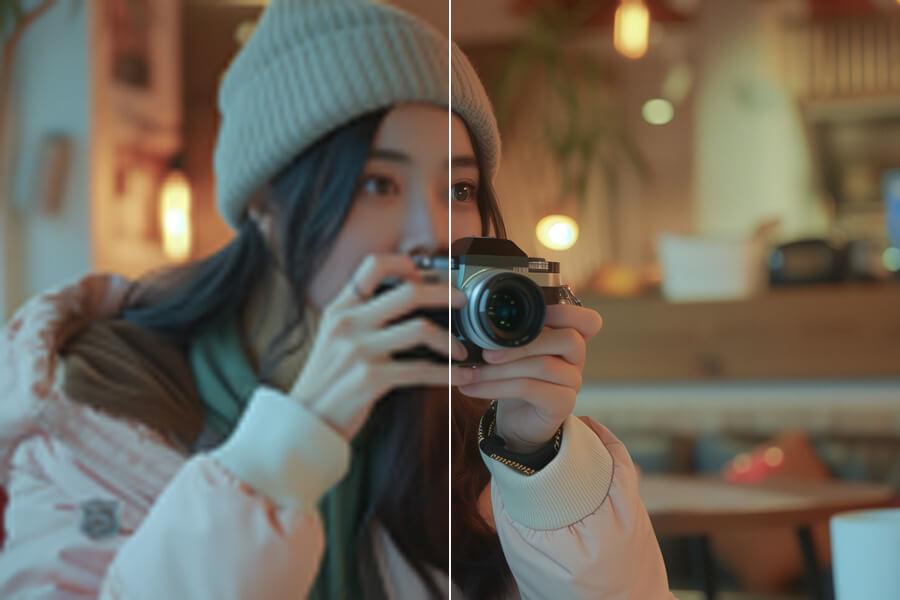
Free Image Upscaler
Use free 2x AI upscaling with no signup and no watermark.
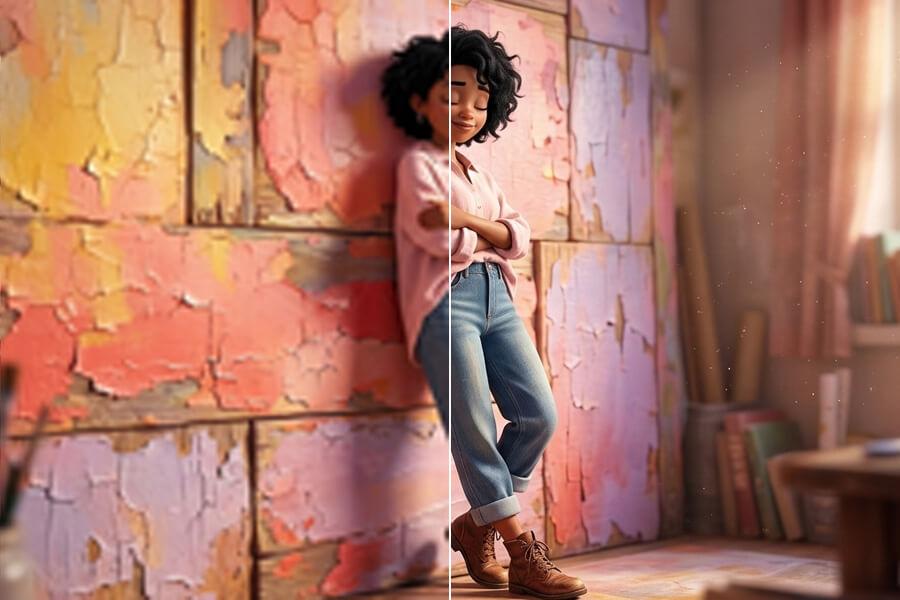
Upscale Image to 4K
Use the 4K image upscaler for screens, prints, and product photos.
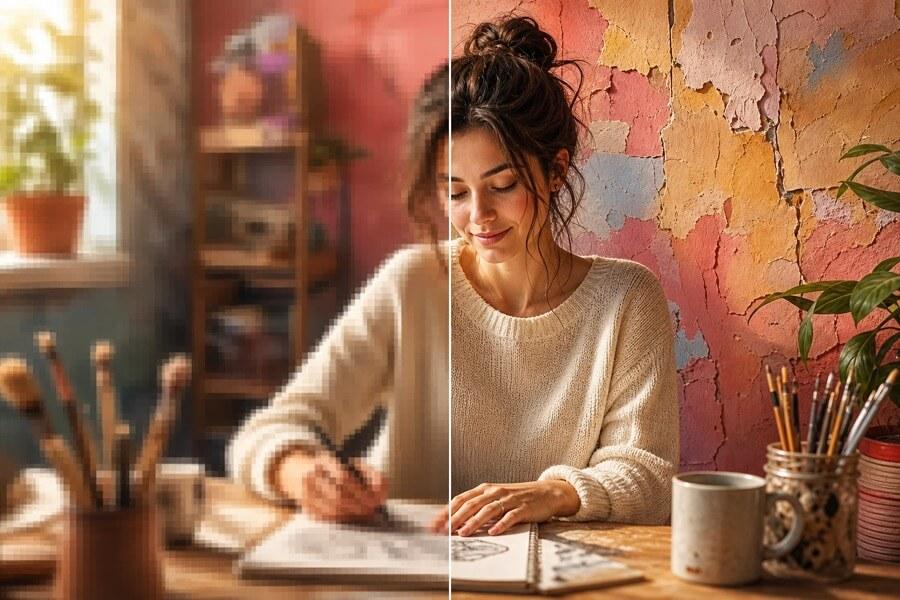
8x Image Upscaler
Upscale images 8x when small originals need maximum output.
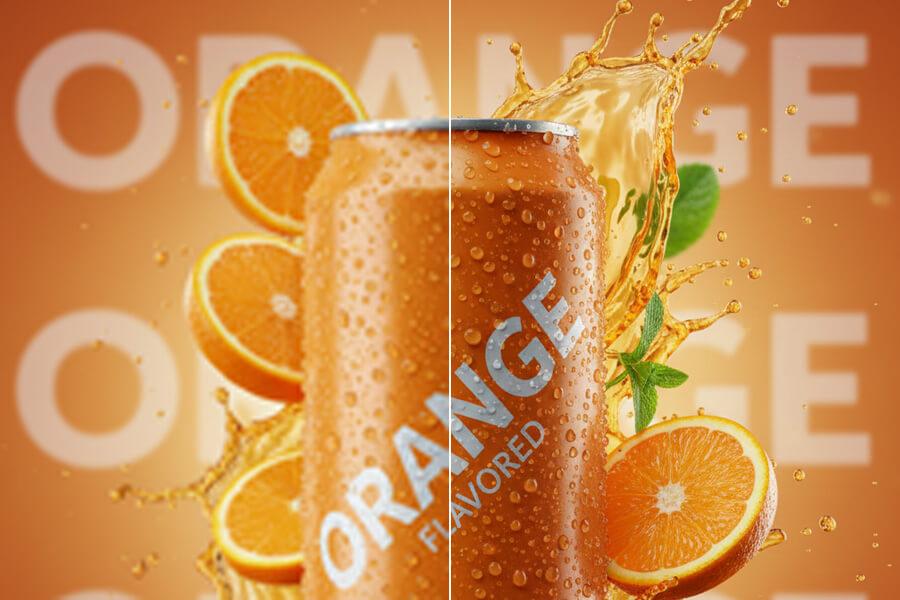
Upscale Product Photos
Upscale ecommerce product photos for listings, ads, and store pages.
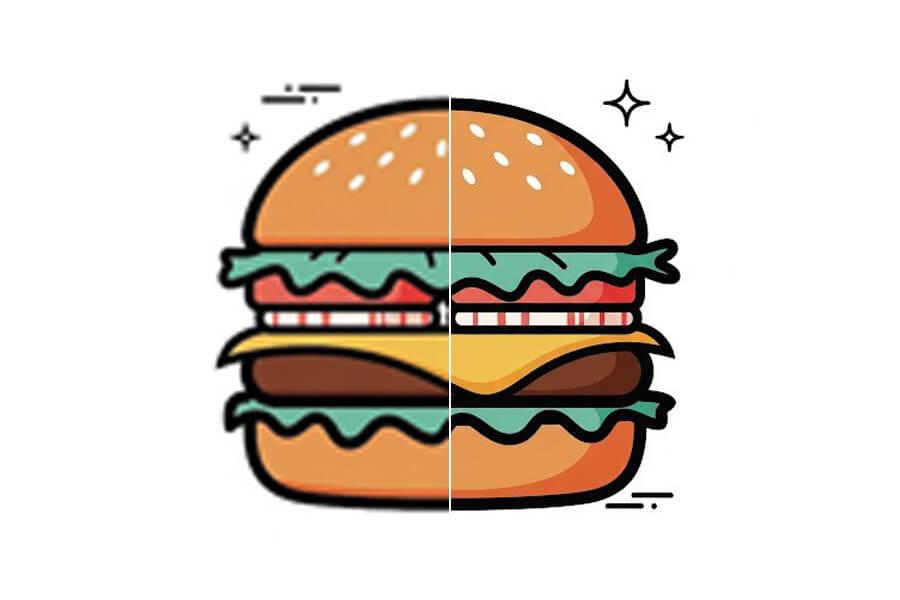
Upscale Image for Printing
Create larger images for photos, posters, flyers, and print layouts.
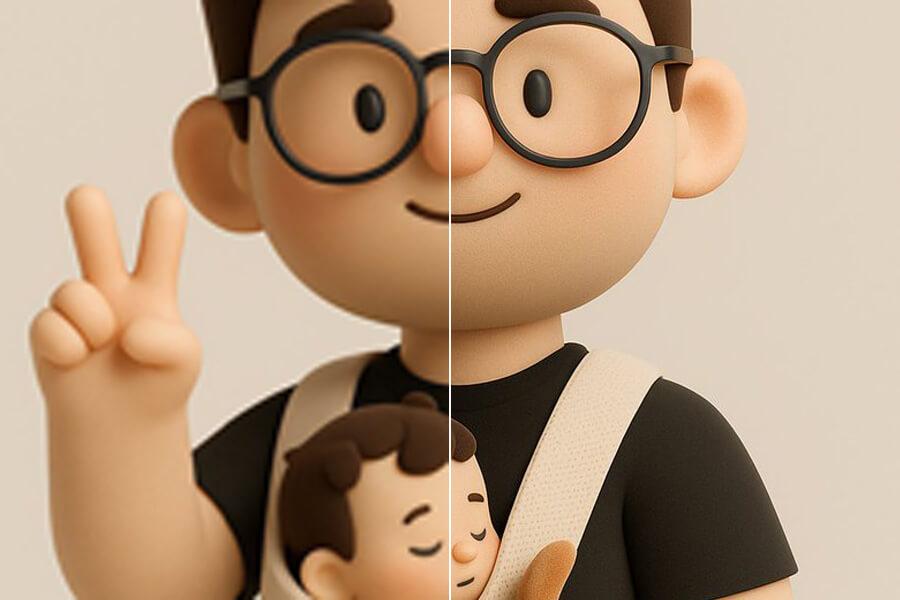
Upscale Image to 300 DPI
See the pixels a 300 DPI print needs and upscale to reach them.
Improve Photo Quality Without Manual Editing
Fix the Problems That Usually Happen Together
Real photos rarely have just one issue. Your low-light shot may be noisy and slightly blurry. A downloaded social media image may have compression blocks, muted color, and soft edges. A scanned print may be faded and grainy at the same time. This photo enhancer looks at the whole image before it applies AI photo enhancement, so it can sharpen useful detail, reduce noise, clean up compression artifacts, and balance color in one workflow. It is a better starting point when you want to enhance a photo online and are not sure which single correction to use.
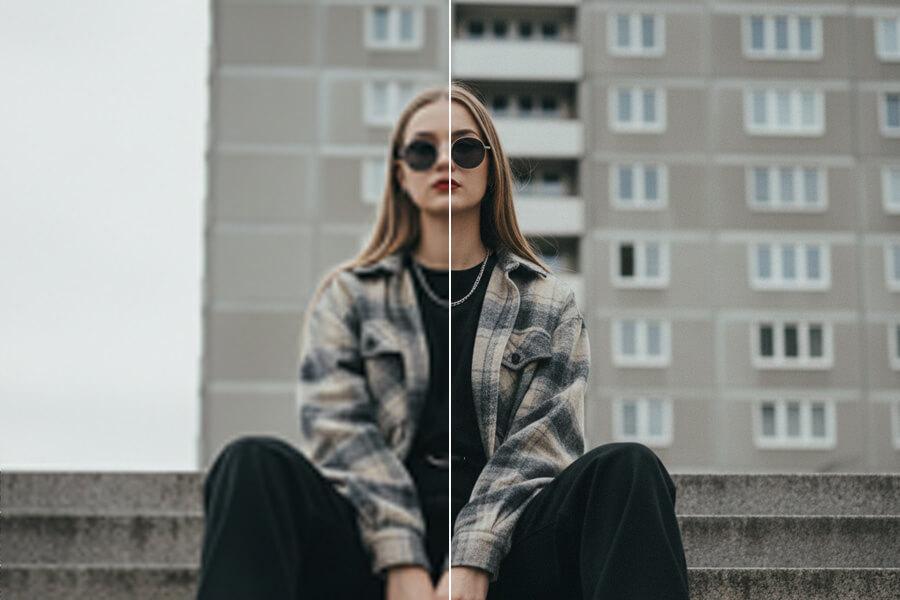
Bring More Life Back to Old, Faded, or Flat Photos
Older prints, early phone photos, and reused web images often lose the qualities that made the original worth keeping: natural color, visible faces, clear edges, and enough detail for sharing or printing. PicUpscaler helps you improve photo quality by correcting common fading, soft focus, grain, and dull exposure. It works best when your source still contains usable detail, so upload the highest-quality version you have. For family archives, product photos, profile pictures, and travel shots, the goal is simple: your photo should look cleaner and more natural, not heavily edited.
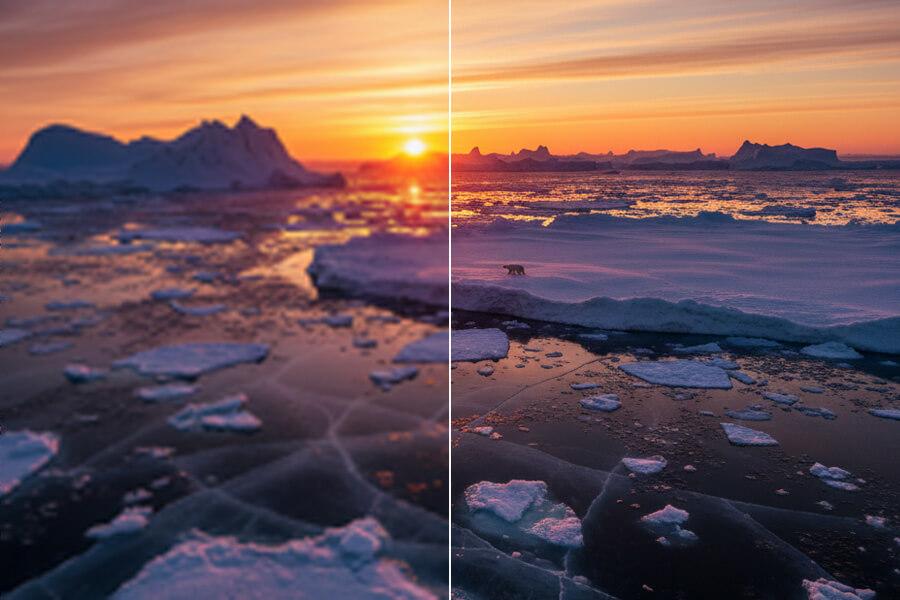
Sharper Results Without the Over-Processed Look
A useful AI photo enhancer should not make skin look plastic, turn colors neon, or create harsh halos around every edge. PicUpscaler is designed to make your photo look like a better version of itself. Sharpening is focused on edges and meaningful details instead of being pushed across the entire image. Noise reduction keeps texture where it matters, and color correction aims for a natural result. You can use the before-and-after preview to judge whether the enhanced photo fits your project before you download it.
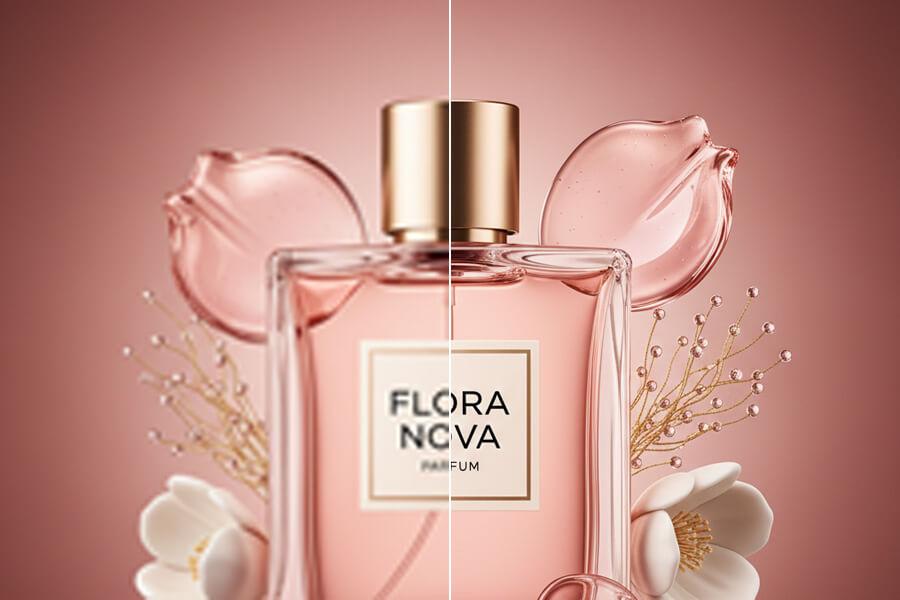
How to Enhance a Photo Online
Upload Your Photo
Upload a JPG, PNG, or WebP image up to 5MB. Start with the best source file you have, especially for old photos, product images, portraits, or pictures downloaded from social media.
Let AI Improve the Photo
The AI checks your image for softness, noise, compression damage, color issues, and low visible detail. Choose 2x for daily free processing, use 4x on Pro or Premium, or use 8x on Premium when you need the largest enhanced result.
Download the Improved Version
Compare before and after, then download your enhanced photo at full resolution with no watermark. Processing time depends on file size, selected scale, image complexity, and current system load.
Photo Enhancer Questions
What does a photo enhancer actually do?
A photo enhancer improves the overall quality of your image instead of applying one fixed filter. PicUpscaler can help with soft detail, mild blur, digital noise, dull color, low contrast, and compression artifacts. It is most useful when you want your photo to look clearer, cleaner, and more usable without spending time in editing software.
How is a photo enhancer different from an image upscaler?
An image upscaler mainly increases image dimensions, such as 2x, 4x, or 8x. A photo enhancer focuses on visual quality: clarity, noise, color, exposure, and compression cleanup. PicUpscaler combines these ideas because many users want both a better-looking photo and a larger output. If your main goal is size, start with the image upscaler. If your main goal is to improve photo quality, this page is the better fit.
Is this different from an image sharpener or denoiser?
Yes. An image sharpener is best when your main issue is softness or lack of crisp edges. A denoiser is best when your main issue is grain from low light or high ISO. A photo enhancer is broader: it can sharpen, reduce noise, improve color, balance exposure, and clean up compression in one pass. Use the enhancer when your photo has several quality issues or you are not sure which single fix it needs.
Can I enhance a photo online for free?
Yes. You can start free and download results without a watermark. Paid plans are available when you need higher scale options for bigger files, client work, e-commerce, or frequent use.
What kinds of photos get the best results?
Photos that still contain usable detail usually respond best. Good examples include smartphone photos taken indoors, product photos that look flat, portraits with mild softness, scanned family photos, and images compressed by social media or messaging apps. Extremely blurry, tiny, or heavily damaged images can still improve, but the AI cannot recover information that is completely missing from the source file.
Will my enhanced photo look natural?
That is the goal. PicUpscaler is designed to improve clarity and detail without turning your image into an obvious filter effect. The result depends on the source image, but the enhancement aims for cleaner edges, more balanced color, and less visual noise rather than an exaggerated edited look.
Can I enhance old or faded photos?
Yes. Old photo scans are a common use case, especially when you want clearer faces, better contrast, and more balanced color. For best results, scan the original print at the highest resolution you can before uploading. A higher-quality scan gives the AI more real detail to work with.
Can I use enhanced photos commercially?
Yes, as long as you have the rights to use the original image. You can use enhanced photos for product listings, client projects, marketing materials, presentations, publications, and other commercial work without attribution to PicUpscaler.
What file formats are supported?
PicUpscaler supports JPG, JPEG, PNG, and WebP files up to 5MB. PNG transparency is preserved through the upscaling workflow when your source image includes a transparent background.
Is my photo kept private?
Images are uploaded over an encrypted connection, processed for the result you request, and automatically deleted from our servers after 72 hours. PicUpscaler does not use your uploaded photos for AI training or share them with third parties.